יום חמישי, 30 ביולי 2015

Using a Depth Mask to Simulate Volumetric Effects

“Simulate volumetric effects”…what? Those just sound like a bunch of big, fancy words. In plain English, what exactly is a volumetric effect?

Put simply, a volumetric effect represents what happens to a subject when it exists in a semi-transparent substance such as fog, smoke, or murky water.

Okay. So what does this have to do with a…what did you call it…depth mask?

Here’s where things get pretty darn cool. A depth mask is a basic grayscale image that allows us to easily simulate the gradual disappearance of a subject over distance as it is obscured by fog, smoke, dust, or water.

Really, that’s possible?

Yes! Now please give me the honor of showing how amazing this is.

Note: Although we’ll create our own depth mask in today’s tutorial, it’s worth mentioning that the new PixelSquid website is loaded with 360-degree stock images and every one of them contains a high-quality built-in depth mask.

Special Note: PixelSquid is so excited for the MSJPhotography audience to experience the uniqueness of their 360-degree models that they are generously offering DOUBLE the free credits to the first 100 people who sign up via the following link…giving those who are quick to act $40 in free credits versus the regular sign up incentive of $20 in free credits: https://www.pixelsquid.com/promotions/msj_tutorial

Images courtesy of Shutterstock (Fish: Copyright Kletr #79415710, Ocean: Copyright Rengizzz #98243516) and PixelSquid (Submarine: Copyright 3d_molier #S100024702).

Step 1: Open a Basic Photo Composite

Open a file with a background layer and a subject that’s been extracted and is on its own layer. To appreciate this effect, choose a background that features fog, mist, smoke, dust, or water.

In this submarine example, notice how the sub currently doesn’t look like it’s submersed in water. If it were, the more distant parts of the sub would be covered by a larger volume of water and would be more obscured by blue. In addition, since blue water quickly filters out the red wavelength, the red paint would grow gradually less intense over the distance of the sub. A depth mask will allow us to accomplish these tasks and realistically “submerse” the sub.

Volumetric Effects screenshot

Step 2: Create a Depth Mask

Before we start, it’s helpful to understand how a depth mask works. A depth mask assigns a grayscale value to each pixel based on its proximity to the camera, so the further away an element, the lighter the pixel, and the closer an element, the darker the pixel. Now that we understand the basic principle of a depth mask, let’s create one.

Command-click (PC: Control-click) on the sub layer thumbnail to pull a selection.

Volumetric Effects screenshot

Choose Select>Save Selection. Name it Sub and press OK to deposit the selection in the Channels panel. If the Channels panel is not already open, choose Window>Channels. Eliminate the marching ants with Command-D (PC: Control-D). In the Channels panel, click on the word Sub to activate the channel.

Volumetric Effects screenshot

Press Command-I (PC: Control-I) to invert the channel. To create the depth mask, we’ll run a Linear gradient through the sub. Activate the Gradient tool. Press D to set white as the Foreground Color. In the Options Bar, open the Gradient picker and choose the Foreground to Transparent option.

Volumetric Effects screenshot

Ensure that the Linear Gradient icon is selected and drag a gradient from just beyond the sub’s stern (rear) to just beyond the bow (front).

Volumetric Effects screenshot

Step 3: Desaturate the Red Color Over a Distance

Now we’ll drain the red color over a distance using the depth mask. In the Channels panel, Command-click (PC: Control-click) on the Sub thumbnail to load the depth mask as a selection.

Volumetric Effects screenshot

Still in the Channels panel, click the letters “RGB” to safely exit the Channels panel. If the Adjustments panel is not open, choose Window>Adjustments. Click on the Create a new Hue/Saturation adjustment layer icon. In the Properties panel, select Reds from the pull-down and drag the Saturation slider completely to the left. Because of the depth mask, notice how this drains more color from the distant part of the sub than it does from the close part. Cool!

Volumetric Effects screenshot

Step 4: Obscure the Sub with Blue Water Over a Distance

Now let’s gradually obscure the sub over a distance with blue water using the same depth mask. Activate the Hue/Saturation layer thumbnail (not mask) and choose the Eyedropper tool. Click to sample a dark blue color from the ocean.

Volumetric Effects screenshot

Command-click (PC: Control-click) the Hue/Saturation adjustment layer mask to load the depth mask as a selection. Choose Layer>New Fill Layer>Solid Color. Press OK. Since we previously selected the dark blue color, click OK.

Volumetric Effects screenshot

To remove the uniform blue color from around the sub and reveal the ocean water, press Command-G (PC: Control-G) to add the Solid Color layer to a group. Command-click (PC: Control-click) the Submarine layer thumbnail to load it as a selection. Click the Add layer mask icon at the base of the Layers panel. This adds a mask to the group containing the Solid Color layer. Notice how the sub now appears to be obscured by more and more water over a distance.

Volumetric Effects screenshot

If the amount of obscuration is too much, reduce the opacity of the Solid Color layer.

Volumetric Effects screenshot

Here’s a look at the “Before” image…

Volumetric Effects screenshot

…and here’s the “After.”

Volumetric Effects screenshot

Much more realistic! Yippee!

Mark S. Johnson Photography
msjphotography.com

יום רביעי, 29 ביולי 2015

Flood your pictures

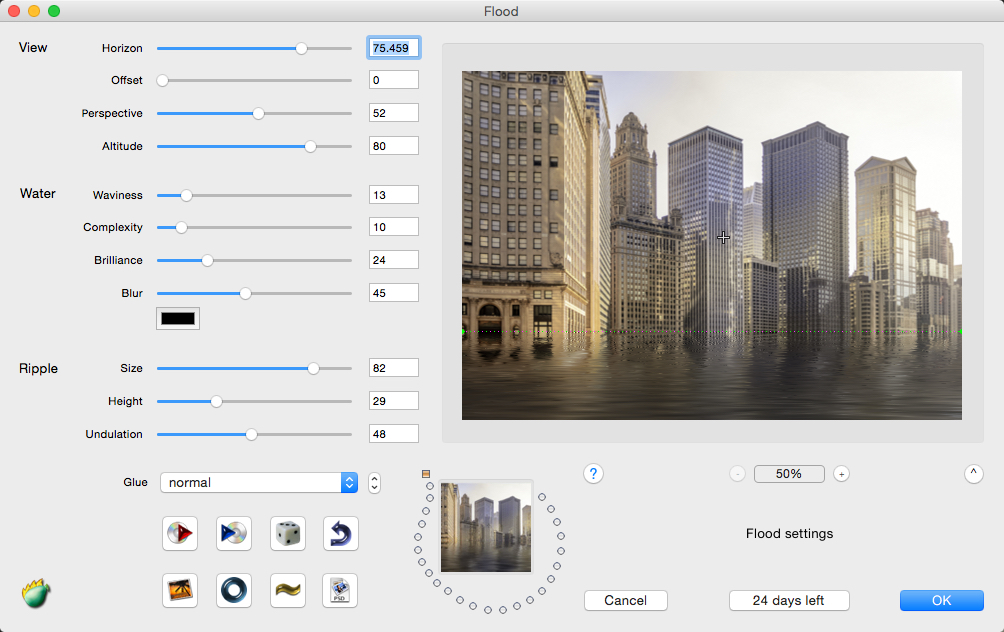
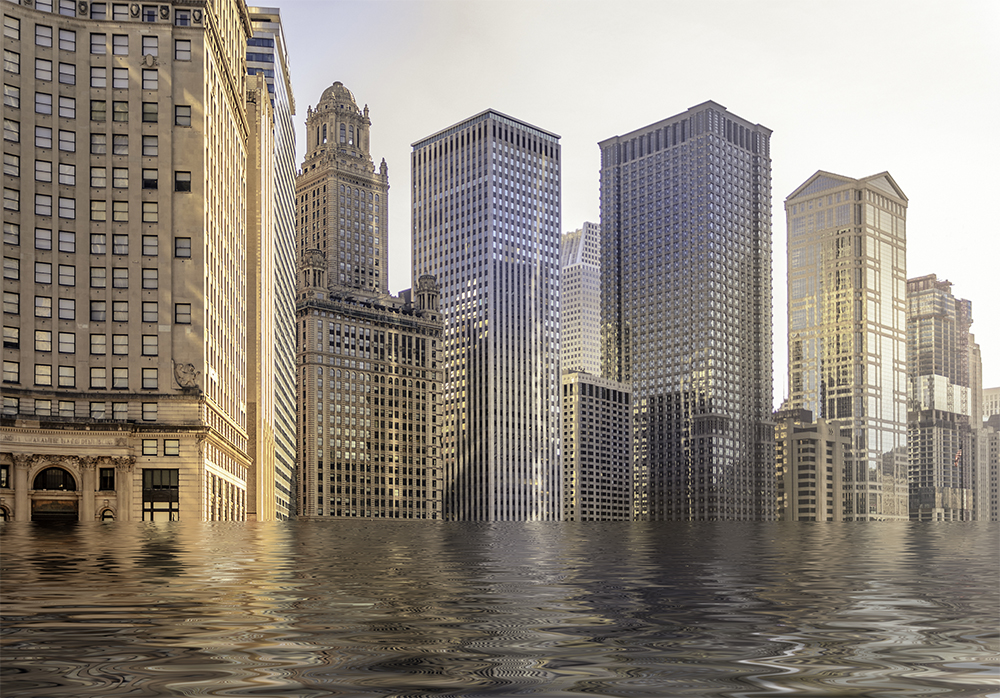
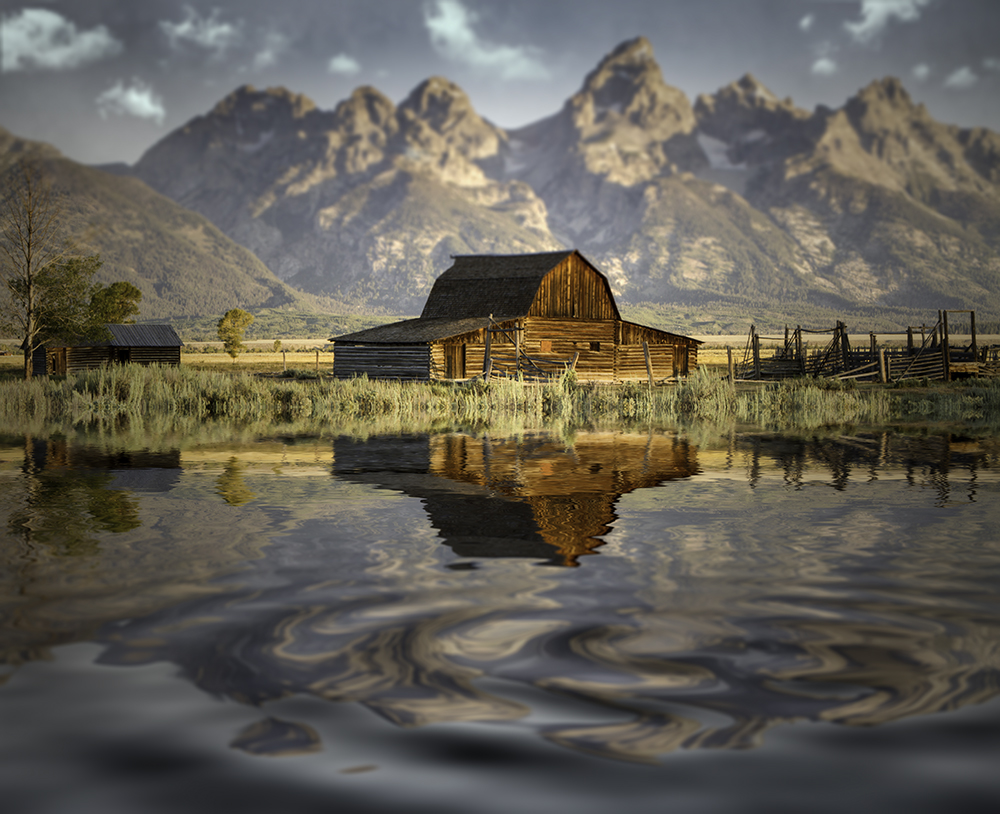
This free app/plug-in from Flaming Pear has been around for a while, but it is still one of my favorites that I go to over and over again. Go to http://www.flamingpear.com/download.html and download “Flood” once you have dragged it into your plug-in folder and restarted Photoshop, you will be able to add water to any image. The interface looks a bit dated, but the effects are top notch and you can really add life to a picture or even redo the water in a scene to make it smoother or more ripply (if that is a word.) Definitely worth your time to check it out.

Stock image from Fotolia.com

Flood plug-in interface

Flood the streets

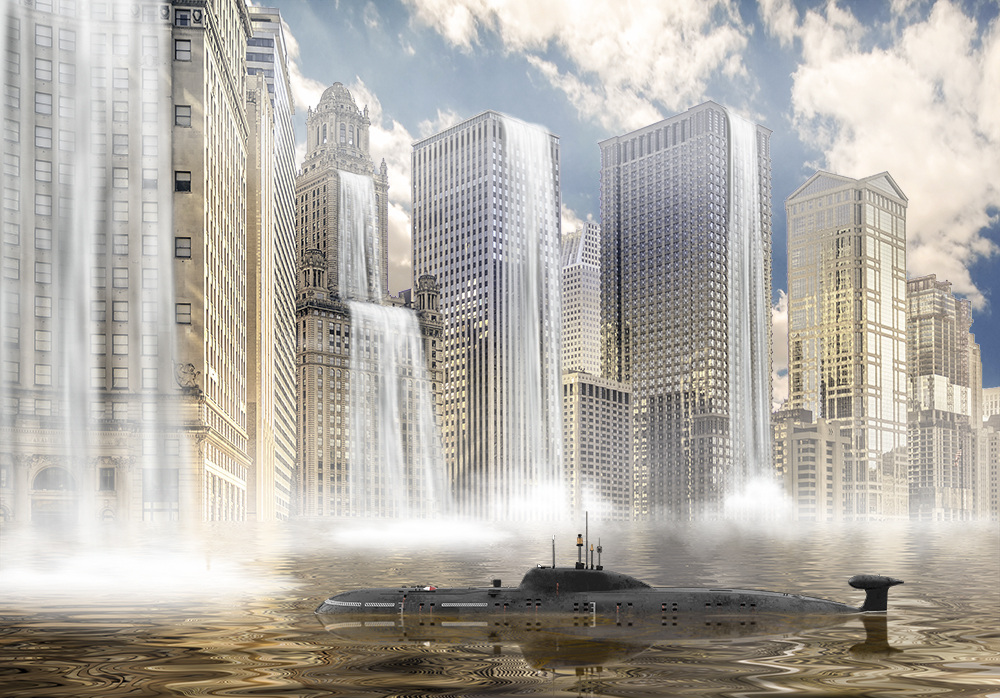
now add your own special effects

The thing that I really like about Flood is that it is a great way to add real estate to your image.  Suppose you have an image that you want to use, but it is the wrong dimensions… Flood can give you much more room depending on how you crop the image to be flooded.

original image 1000 x 400 pixels

by cropping the image outside of the boundaries, you can easily double the size

After flooding the image size is 1000 x 800 pixels

Flooding can give your old images new life and you a lot of new creative ideas… so take it for a spin.

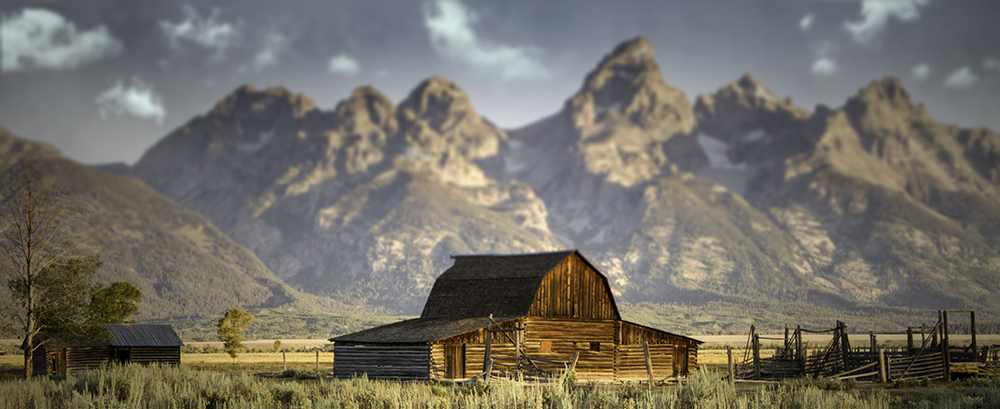
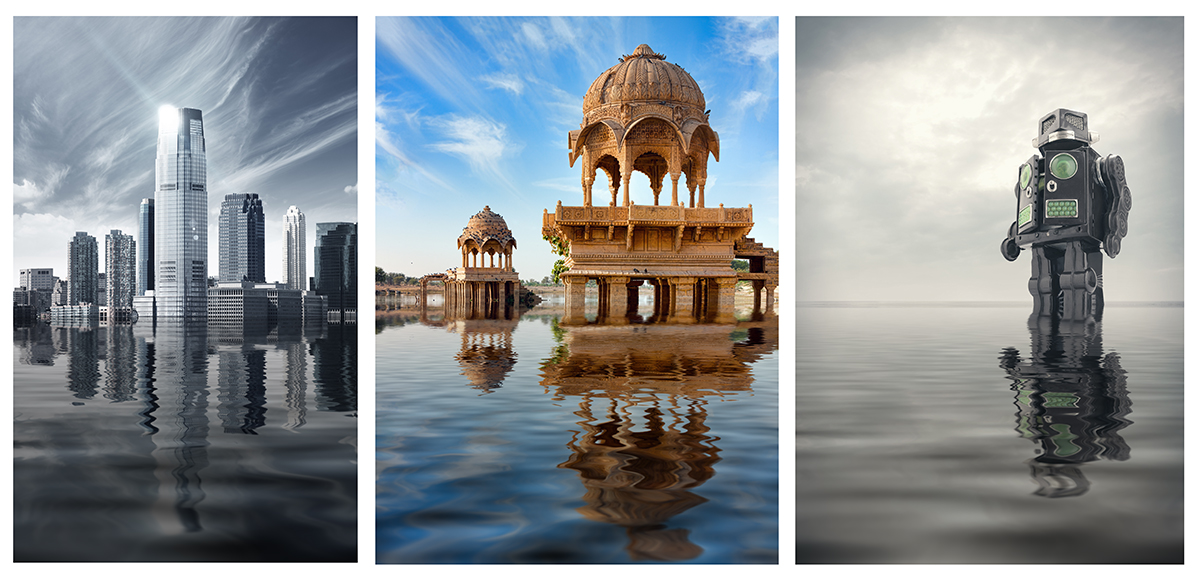
a few images that have been flooded just for the fun of it.

יום שלישי, 28 ביולי 2015

טיפים חיוניים לעיצוב הבית

עיצוב בתים הוא שלב קריטי בהפיכת הנכס שלכם לנוח, מזמין, פרקטי ומפנק. בית מעוצב בקפידה הופך את החיים בו לשונים בתכלית, ומעלה משמעותית את ערך הנכס שלכם, לרוב בסכומים העולים על ההשקעה שנדרשה בשלב העיצוב.


צריך לתת את הדעת היטב על מספר דגשים מרכזיים:
תכנון התאורה הפנימית והתאורה החיצונית בבית.
לשם כך יש ראשית כל לתכנן אותה בהתאם לרצון ולצרכים, אבל לשם היישום המעשי הכי טוב צריך לפנות לחשמלאי מוסמך שייתן את ההדרכה המקצועית היסודית והמלאה לביצוע העניין ובמידת הצורך יבצע את מלוא העבודה הוא עצמו.
תכנון גינה
אם בעלי הבית מעוניינים בשילוב של צמחיה בפנים ומחוץ לבית עליהם להתייעץ לשם כך עם אגרונום או גנן מומחה. אלו יכולים לתת תשובות הן לגבי האסתטיקה של הצמחים, התועלת שבהם, ומאלו סוגי צמחים יש להימנע בגלל אלרגיות, לכלוך או התפשטות יתר שלהם. ישנם סוגים רבים ויפים של צמחים. אבל הם לעיתים לא טובים לבית ואפילו לא לגינת הבית. לכן הדגש כאן צריך להיות על שילוב הולם וטוב של יופי, אסתטיקה, השתלבות במרחב, והימנעות מבעיות של אלרגיות לצמחים, לכלכוך או התפשטות יתר.
פתרונות איחסון ופונקציונליות של הבית
יש לשים את הדגש על תכנון מיטבי ומירבי של המרחב הביתי. זה שכולל גם אפשריות אחסון, יצירת מרחב תנועה מיטבי ומירבי בתוך הבית עצמו לנוחות דייריו. התחשבות בצרכים כמו נקיון, בישול, ועוד. במצב דברים זה בעלי הבית צריכים להיות עירניים ואפילו לבדוק היטב כיצד הדבר נראה בבתים אחרים, דומים על מנת לדעת מה כדאי להם להביא בחשבון וממה עליהם להימנע. בתכנון בית צריך לייצר מרחב הכי נוח ומרגיע שניתן לדייריו.

יום ראשון, 26 ביולי 2015

{עיצוב גני הילדים של המחר| תערוכת בוגרי שנקר |איך מעצבים גני ילדים|עיצוב פנים לגני ילדים|עיצוב פנים מבנה וסביבה}


גן לפי עקרונות הרשתות החברתיות, גן מגרוטאות, שילוב צמחיה בתוך חלל הגן, ועוד קונספטים חדשניים לעיצוב גני המחר "מככבים" בתערוכת הבוגרים השנתית של המחלקה לעיצוב פנים מבנה וסביבה במכללת שנקר.

התערוכה תוצג בבניין מיטשל, קומה 3 בשנקר עד ה-31 ליולי. שעות פתיחה: ימי א'-ה' – 22:00-10:00, ימי ו' – 13:00-10:00. ביום ראשון, ה-26.07, התערוכה תהיינה סגורה בשל ט' באב. רח' ידע העם 8, ר"ג, קומה ג'


http://www.thepulse.co.il/%D7%A2%D7%99%D7%A6%D7%95%D7%91-%D7%92%D7%A0%D7%99-%D7%94%D7%99%D7%9C%D7%93...


{מעצבת האופנה מספרת מה עושה אותה מאושרת|מה הופך מעצבת אופנה למאושרת}

נעמה בצלאל פותחת את הסטודיו ואת הלב ומדברת על משפחה, עבודה ובעיקר הרגעים והדברים בהם היא מוצאת שמחה


כיצד את מגדירה אושר?


"אושר יכול להיות לרגע אחד קטן והוא יכול להיות למשך תקופה, בשניהם אתה מוצא את עצמך בתוך איזושהי בועה משלך שמכילה את כל מה שמתרחש סביבך. אתה מרוכז בתחושה הזאת שגורמת לך לתחושה עילאית שמעלה חיוך, דמעה או פעימת לב".

{לכתבה המלאה בקרו ב|בקרו באתר מעריב |לכתבה המלאה בקרו ב} http://www.maariv.co.il/lifestyle/Signon-maariv/Article-490347

יום חמישי, 23 ביולי 2015

Unlimited Custom Borders Using Nothing But Textures and Refine Edge

Recently, while playing in the Refine Edge dialog, I was struck by the idea that it’s possible to combine Refine Edge’s powerful sliders with textures to create an unlimited variety of borders that can be applied to any photo in your inventory. The process is fast and simple, and with the array of textures available on sites such as CGTextures, there’s no limit to the creative possibilities.

Texture image: © CGTextures
Botanical image: © Mark S. Johnson Photography

Step 1: Open a Texture

Open a texture with lots of edge detail. Textures can be captured with your camera or downloaded from sites such as CGTextures ( http://www.cgtextures.com/ ), Flypaper Textures ( http://flypapertextures.com/ ), or French Kiss Collections. Discounts for Flypaper and French Kiss textures are available on the MSJPhotography Discounts page.

Custom Borders Using Nothing But Textures and Refine Edge

Step 2: Make a Rectangular Marquee Selection

Activate the Rectangular Marquee tool and pull out a selection. Leave a 10 – 20% border. Remember that it’s possible to reposition the selection while scaling by adding in the Spacebar.

Custom Borders Using Nothing But Textures and Refine Edge

Step 3: Creatively Refine the Edge

In the Options Bar, click the Refine Edge button.

Custom Borders Using Nothing But Textures and Refine Edge

Choose On White from the View menu. Experiment with the Radius, Contrast, and Shift Edge sliders until the border looks interesting.

Custom Borders Using Nothing But Textures and Refine Edge

Set the Output To menu to Selection. Press OK.

Step 4: Create a “Clip” Layer

Now we’ll create a layer that will cut the border for any photo we choose. Click the Create a new layer icon at the base of the Layers panel. Tap D, then press Option-Delete (PC: Alt-Backspace) to fill the selection with black. Press Command-D (PC: Control-D) to deselect.

Custom Borders Using Nothing But Textures and Refine Edge

Step 5: Clip in a Photo

Open the photo to which you’d like to apply the border.

Custom Borders Using Nothing But Textures and Refine Edge

Press Command-A (PC: Control-A), then Command-C (PC: Control-C) to copy the photo. Return to the “border” document and press Command-V (PC: Control-V) to paste the photo. Choose Layer>Create Clipping Mask to clip the photo inside the border. Wow…custom border, minimal effort!

Custom Borders Using Nothing But Textures and Refine Edge

If desired, scale the photo and/or border so they fit together better.

Step 6: Hide the Texture

Since the stone texture is still visible around the edges, we’ll add a white layer to hide it. Activate the Background (the texture). Click the Create a new layer icon. Tap D, then press Command-Delete (PC: Control-Backspace) to fill the layer with white. Ta-da!

Custom Borders Using Nothing But Textures and Refine Edge

To apply this border to another photo, open the photo and pick up with Step 5. To create other borders, open other textures and have fun experimenting with this technique!

Mark S. Johnson Photography
msjphotography.com

יום שלישי, 21 ביולי 2015

DEAL – MASSIVE DISCOUNT ON STOCK PHOTOS (90% OFF)

Depositphotos offers one of the largest stock photo libraries on the Web. For a limited time, you can nab 100 or 200 of your favourite images for up to 92% off the regular price thanks to Mighty Deals.

There are over 30 million high-quality vector images and photos to choose from, and you can pick your image’s size, including the much sought-after and pricey XXL and XXXL sizes.

Dep1

Each royalty-free photo works out to less than a dollar each, and there’s no time limit on when you download your images: pick all of your photos today or choose each favourite over the course of a year.  It’s up to you.

Check out this limited time offer here.

The post DEAL – MASSIVE DISCOUNT ON STOCK PHOTOS (90% OFF) appeared first on PSD : Photoshop Disasters .

Creating a Conversational Seating Area | Interior Design | #WWRD 3

Creating a Conversational Seating Area | Interior Design | #WWRD 3

Art In Red Spring Onion & Carrot Garnish | Vegetable Carving | Cute Cartoon Wedding Couple

Art In Red Spring Onion & Carrot Garnish | Vegetable Carving | Cute Cartoon Wedding Couple

Pall Mall: Armed And Dangerous

The look on her face says it all.

pallmall

This disaster appears on a poster advertisement in Stuttgart, Germany. Thanks for sending it in, Simon!

The post Pall Mall: Armed And Dangerous appeared first on PSD : Photoshop Disasters .

Photoshop Round-Up: Links We Love

Here’s a look at what’s been happening in Photoshop and pop culture lately. Enjoy!

bowl-cut

  • 20 kids who had the WORST haircuts on school picture day. [Web Humor]
  • How graphic design worked before Photoshop. [Digg]
  • Marlon Brando was a secret tech geek and Photoshop ace. [Yahoo Movies]
  • Guy asks internet to Photoshop his girlfriend with a bigger fish; hilarity ensues. [BroBible]

jessica

  • Did Jessica Simpson Photoshop this vacation photo? [Radar Online]
  • All these girls wanted was a little Photoshop help. [The Chive]
  • We want it, we just don’t want to pay for it. [Clients From Hell]

We’ll be back next week with more disasters. In the meantime, don’t forget to join us on FacebookTwitter, and Google+.

The post Photoshop Round-Up: Links We Love appeared first on PSD : Photoshop Disasters .

יום ראשון, 19 ביולי 2015

עיצוב בתים פרטיים במרכז - לי אשבל 052-3932537

עיצוב בתים פרטיים במרכז - לי אשבל  052-3932537עיצוב חכם, שירותי עיצוב בתים קטנים באזור השרון והמרכז